
FAQ
[NEW!] LIQMAXFLO AIO Liquid CPU cooler Series Q&A
Find the answers to the most common questions you ask about the LIQMAXFLO Series:
Q1: The user manual states that "connect the fans to the motherboard with PWM Y cable" but no mention of the PWM cable coming out of the pump, what do I do with that? Also which where to on the motherboard?
A1: The red circle indicates the PWM cable of the water block. Use accessory O (PWM Y cable) to connect the fans and the water block in series, and then connect them to the motherboard. If you want the AIO cooler to retain PWM functionality, please refer to the motherboard manual and connect it to a header with PWM control.
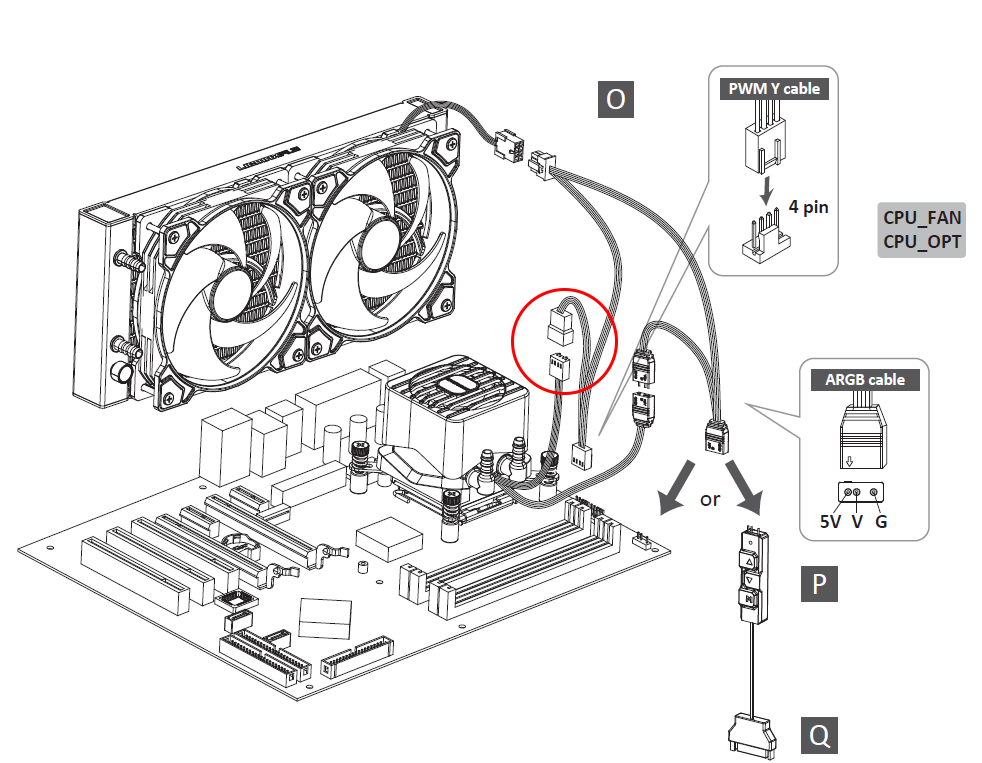
Q2: My old AIO Water CPU cooler has two separate cables for the pump and the fan, but I only see one cable now, which fan header should I use?
A2: The fan cables of the LIQMAXFLO series have been optimized for easier cable management. With the new method, if you have more than two radiator fans, they will be interconnected first, and with just a single PWM Y Cable, both of the fans and the pump will be connected before connecting to the motherboard to create a cleaner system look. To activate the PWM functionality, please refer to the motherboard manual and connect it to a header with PWM control.
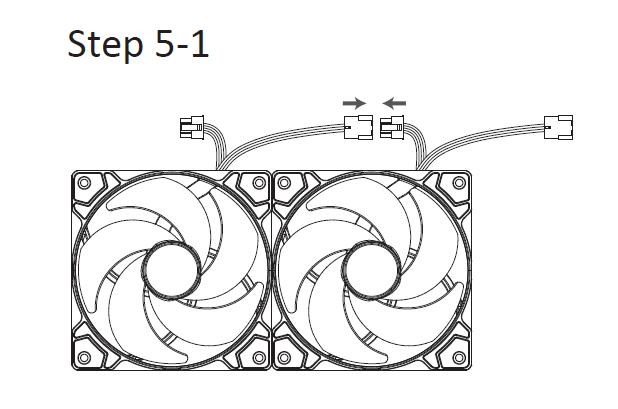
Q3: The fans are running at full speed even at idle and it's loud, is it defective? (If plugged into pump header)
A3: First, you need to check the definition of the header you have plugged into. Taking ASUS(ROG) as an example, the default mode when plugged into their "AIO_PUMP" header is full speed, which means even connecting a PWM fan to this header will run it at full speed. Since the definition varies by motherboard manufacturer, if you encounter such issues, you can enter the BIOS or motherboard software to adjust the fan mode, or you can connect the fan to another header with PWM control.
Q4: How do I control the speed of the radiator fan(s), VRM fan, or pump?
A4: Please enter the BIOS or use motherboard software to adjust the speed. If you’re using a PWM Y Cable to connect the fans with the pump, it will simultaneously control the radiator fan(s), VRM fan, and pump at the same time.
Q5: Can I set different speeds for the pump and fans?
A5: Yes, you can adjust the speed by entering the BIOS or using the motherboard software.
Q6: Is there an option to turn off the VRM fan on the ?
A6: Due to the 4-pin connector which supplies power to both the VRM fan and pump, the VRM fan cannot be turned off individually.
Q7: How do I configure my PWM settings?
A7: Please connect the cooler to a header with PWM control. For more details, please refer to the manual of the motherboard.
Q8: What speed should I set the pump speed to?
A8: It’s recommended to use the PWM function to let the fan adjust its speed based on the system load. For manual control, it’s recommended to set it at full speed to achieve the best cooling performance.
Q9: Isn't it better to have the pump set at 100% all the time?
A9: If you’d like to prioritize cooling performance over noise, you can set the pump at full speed for optimized cooling. However, if you wish to have a low noise during low loads, you can use the PWM function to control the pump to achieve the balance between noise and performance.
Q10: My system is reporting the RPM at 0, is the pump dead?
A10: If you encounter this issue, please access the BIOS or your motherboard software to check if the fan mode is set to 0 rpm control.
Q11: My system is reporting the RPM at 1207, does that mean it's the speed for both fans, pump, and VRM fan?
A11: The PWM Y Cable which is included with the LIQMAXFLO SR series will detect the speed of the radiator fan, so the 1207 RPM is the speed of the radiator fan. If you want to detect the speed of the VRM fan, you can connect the 4-pin header of the water block separately to the motherboard to get the speed of the VRM fan.
Q12: My fan is barely turning, are the fans dead?
A12: If the fan speed is set to its minimum start-up threshold, it might prevent the fan from operating correctly. Please avoid setting it to the minimum start-up threshold.
Q13: My motherboard is giving me a warning that no CPU_FAN is detected at bootup, what should I do?
A13: Each motherboard manufacturer sets one of the headers to be essential for a successful boot, usually labeled as CPU_FAN. This header isn't specifically for either the PUMP or the fans; as long as it is attached. In the LIQMAXFLO AIO cooler, fans and water blocks are connected through the PWM Y Cable which can be connected to CPU_FAN as a necessary condition for booting. Also, each motherboard manufacturer may have different naming conventions. Please refer to the motherboard manual for more details.
Q14: The header on my motherboard is not supplying enough power, what should I do?
A14: Generally, the current supplied by a header is between 2 - 3A. For the LIQMAXFLO 420mm AIO, the total current is approximately 0.67A (Fan-0.08A*3 + Pump-0.43A), so there shouldn't be an issue of insufficient power from the motherboard. If you happen to have a motherboard with a lower power supply, you can remove the water block's 4-pin connector from the PWM Y Cable and connect it separately to another header to distribute the current.
Q15: What does the included SATA adapter do?
A15: The SATA adapter is an extra accessory that allows you to connect the power supply with any of the 4-pin devices.
Still can't find the answers you want? Click the picture below to connect with one of ENERMAX's experts!

⚠️Recommended PSU for NVIDIA GeForce RTX 40 Series
ENERMAX's power supply series provides reliable wattage output to support your NVIDIA GeForce RTX 40 Series and AMD Radeon™ RX 7000 Series graphics cards.
You may choose higher efficiency or wattage power supply for potential system upgradeability from the recommendation list. A lower power rating may work depending on the system configuration.
If your RTX 4070 graphics card requires PCIe 8-pin power, you can also consider the REVOLUTION D.F. 2 power supply.
NVIDIA
⚠️Recommended PSU for AMD Radeon™ RX 7000 Series
ENERMAX's power supply series provides reliable wattage output to support your NVIDIA GeForce RTX 40 Series and AMD Radeon™ RX 7000 Series graphics cards.
You may choose higher efficiency or wattage power supply for potential system upgradeability from the recommendation list. A lower power rating may work depending on the system configuration.
If your RTX 4070 graphics card requires PCIe 8-pin power, you can also consider the REVOLUTION D.F. 2 power supply.
AMD
⚠️TDP Compatibility for AMD & Intel CPUs
● Efficient cooling with maximum performance
● Cooling with possible thermal throttling under heavy load
● Thermal throttling under load
* Be aware that the recommended cooler can only work as intended if the case is providing adequate airflow, and the cooler performance is tested when the CPU is running full loading.
* The TDP of coolers are calculated by Thermal resistance testing machine, please refer to the formula "TDP (Watts) = (tCase (° C) - tAmbient (° C)) / (HSF Θca)"
[AIO] AQUAFUSION Series Installation Guide (AM5 & LGA1700)
Installation Guide Video For Socket LGA1700
Installation Guide Video For Socket AM4 & AM5
AQUAFUSON series includes:
ELC-AQF120-SQA
ELC-AQF240-SQA
ELC-AQF360-SQA
ELC-AQF120-SQA-W
ELC-AQF240-SQA-W
[AIO] LIQMAX III 120 HF Installation Guide (AM5 & LGA1700)
Installation Guide Video For Socket LGA1700
Installation Guide Video For Socket AM4 & AM5
LIQMAX III 120HF (ELC-LMT120-HF)
[AIO] LIQMAX III RGB Series Installation Guide (AM5 & LGA1700)
Installation Guide Video For Socket LGA1700
Installation Guide Video For Socket AM4 & AM5
LIQMAX III RGB series includes:
ELC-LMT120-RGB
ELC-LMT240-RGB
[AIO] LIQMAX III ARGB Series Installation Guide (AM5 & LGA1700)
Installation Guide Video For Socket LGA1700
Installation Guide Video For Socket AM4 & AM5
LIQMAX III ARGB series includes:
ELC-LMT120-ARGB
ELC-LMT240-ARGB
ELC-LMT240-W-ARGB
ELC-LMT360-ARGB
ELC-LMT360-W-ARGB
[AIO] LIQTECH II Series Installation Guide (AM5 & LGA1700)
Installation Guide Video For Socket LGA1700
LIQTECH II series includes:
ELC-LTTO240-TBP
ELC-LTTO280-TBP
ELC-LTTO360-TBP
[AIR] ETS-T50 AXE Series Installation Guide (AM5 & LGA1700)
CLICK TO DOWNLOAD ETS-T50A-FSS USER MANUAL
Installation Guide Video For Socket LGA1700
Installation Guide Video For Socket AM4 & AM5
ETS-T50 AXE series includes:
ETS-T50A-BK-ARGB
ETS-T50A-W-ARGB
ETS-T50A-FSS
[AIR] ETS-F40 FS Series Installation Guide (AM5 & LGA1700)
Installation Guide Video For Socket LGA1700
Installation Guide Video For Socket AM4 & AM5
ETS-F40 FS series includes:
ETS-F40-FS
ETS-F40-BK
ETS-F40-BK-ARGB
ETS-F40-W-ARGB
[AIR] ETS-T40 Fit Series Installation Guide (AM5 & LGA1700)
Installation Guide Video For Socket LGA1700
ETS-T40Fit series includes:
ETS-T40Fit-TB
ETS-T40Fit-BK
ETS-T40Fit-W
ETS-T40Fit-RF
AMD Socket AM4 and AM5 Compatibility
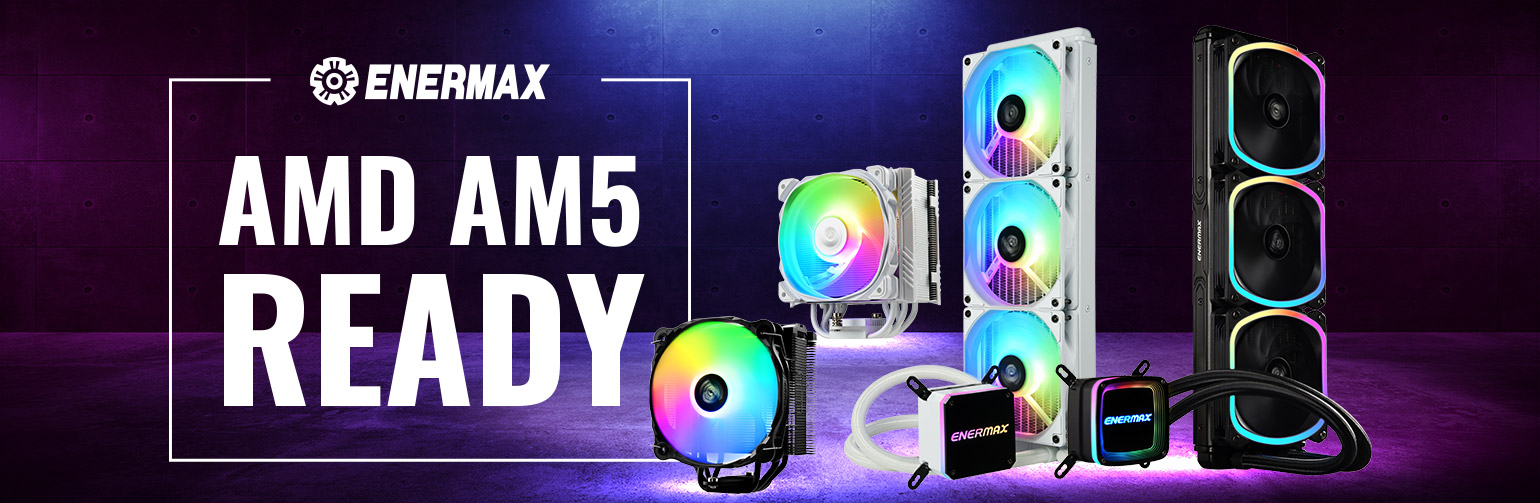
ENERMAX CPU Coolers are fully compatible with AMD Socket AM5 for Ryzen 7000 processors!
The new AM5 socket (LGA1718) is used in AMD’s new 4ᵗʰ generation Ryzen processors (Ryzen 7000 series).
ALL ENERMAX CPU coolers released after late 2021 are AM5 ready!
With ENERMAX CPU cooler series, users don’t need an extra back plate for AM5!
ENERMAX provides screws designed specifically for AM4's and AM5’s pre-installed back plate.
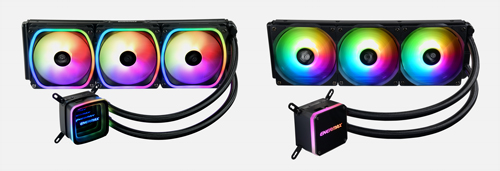



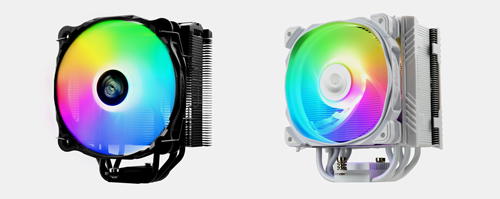
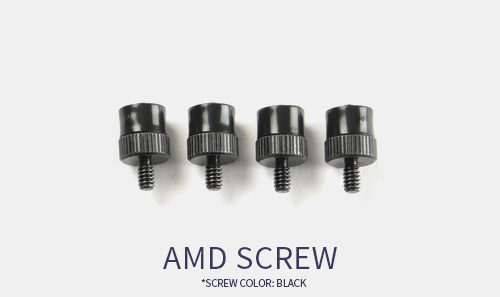
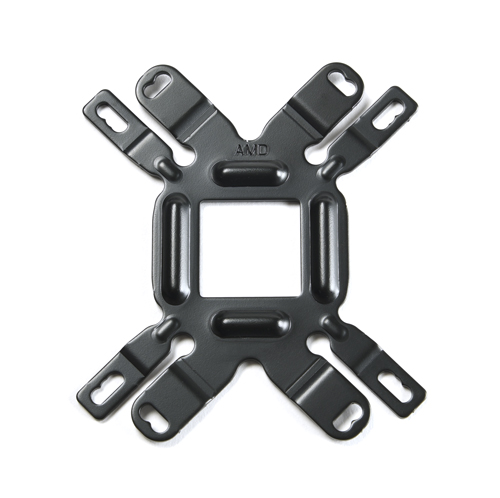
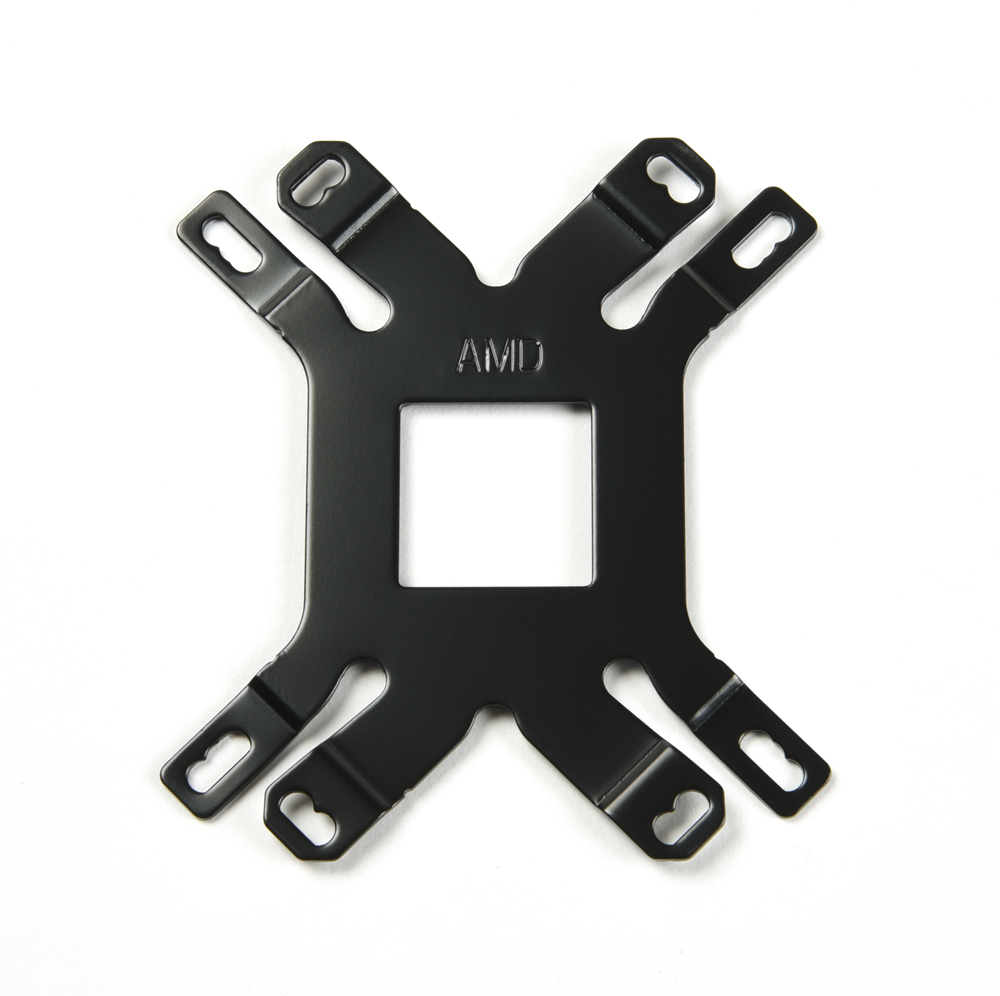
The mounting kits of ENERMAX’s CPU Coolers are upgraded in 2021, compatible with AMD socket AM4, AM5, and lntel LGA 1700.
For customers whose ENERMAX CPU coolers are the previous version, which does not come along with the upgraded mounting kit, you may contact your ENERMAX local branch to request a new mounting kit.
ENERMAX Worldwide Website
ENERMAX Global
ENERMAX USA
ENERMAX Europe
ENERMAX Japan
ENRERMAX China
ENERMAX Taiwan
Previous version of CPU cooler the backplate photo
AQUAFUSION
LIQMAX III
ETS-T50 AXE
ETS-F40
The RGB Controller Specifications
| RGB Sync. Connector |  3 pin ARGB (5V/Data/-/GND) |
|
| RGB Sync. Compatibility | Asus, Asrock, MSI, Gigabyte, Razer Chroma (with Asrock and MSI mainboards) | |
| Lighting Modes | - |
Racing-Rainbow (Default), Breathing-Rainbow, Flash-Rainbow, Overlaying-Rainbow, Flow-Rainbow, Colors auto-run (8 colors), Ripple auto-run (8 colors), Overlaying-RED, Overlaying-GREEN, Overlaying-BLUE |
| Power Connector | - |
|
| Max. Current | - |
3A |
What is "Thermal Resistance" of CPU Cooler
| Thermal resistance= (Tc- Ta)/ CPU Input Power = n ℃/W. Whereas Tc= CPU Core temperature. Ta= Ambient temperature. The thermal resistance of 0.1℃/W cooler means when CPU increases 1W power consumption, the cooler will have the CPU temperature increase 0.1℃. Therefore, smaller the thermal resistance value, higher cooling performance of the cooler. |
The Difference Between AC Fans & DC Fans
| AC fan uses alternative current to power the fan, whereas DC fan uses direct current. AC powered fan is usually used on home appliance, big size, high speed fans. DC powered fan is usually used on PC industry, and its fan speed can be adjusted by changing the supplied voltage. |
What are the normal working ambient of case fans
| The conventional case fan working ambient is around -10~60℃. Some of ENERMAX fan has upgraded componments and can extend the working ambient to 85℃ such as Magma or TwisterPressure series. |
What are ENERMAX Twister Bearing Advantage against sleeve and ball bearing
| ENERMAX's patented Twister bearing has self-lubricated composite, therefore, it has no lubricant drained or deteriorated risk. The built-in magnet stablizs the fan shaft and keeps the vibration/friction away. Therefore the Twister bearing has quieter performance than sleeve bearing, and longer MTBF than two-ball bearing. Furthermore, the Twister bearing allows the fan be detached/re-attached for easy dust cleaning. |
How to convert the airflow unit
| CFM = cube feet per minute; m3/h= cube meter per hour; m3/h = CFM x 1.699 |
What is a PWM fan and how does it work
| Common DC fan can be adjusted its fan RPM by changing the supplied voltage. The PWM (Pulse-Width-Modulation) fan uses additional signal to receive the PWM (from MB or other console) to adjust its RPM. |
What is a thermal controlled fan
| The fan has built-in thermal sensor to read the ambient/attached object temperature, and the fan can be programmed to self-adjust the RPM accordingly such as ENERMAX Everest fan |
What is ENERMAX APS (Adjust Peak Speed) fan control
| APS (Adjust Peak Speed) is a built-in switch on PWM fan. It gives the fan different fan peak RPM options for users to chose. For example, ENERMAX TwisterPressure provides three speed option: 500-1200/1500/1800. |
What is ENERMAX SSC fan control
| SSC (Shift Speed Control) is a built-in switch on DC fan. It gives users the multiple choice of fan's max RPM. For example, TwisterStrom can set its max RPM of 1500/2500/3500 via SSC control. |
Why is higher air pressure fan preferred for CPU cooler
| When fan is applied with direct contact of certain airflow resistance object such as the heatsink of air cooler, or the radiatior of liquid cooler, the fan (blades) generating higher pressure can push more air to travel through, and take the heat away. |
How to find a Serial Number
| Serial numbers contain information about the product that ENERMAX can use to provide support. They are often preceded by “S/N:” and frequently appear next to a bar code. They are usually the longest sequence of numbers you’ll see on the label. Normally serieal numbers can be seen on the product packages and the product itself; you may find the serial number stickers on the following location: Cases: Rear panel, often near PSU slot Cooling: Side of radiator Fans: Top edge PSU: near the PSU cord jack |
ENERMAX Warranty Policy
ENERMAX WARRANTY POLICY STATEMENT
Warranty all (non-networking / non-sponsored) products purchased from ENERMAX as free from defects in material and workmanship for normal use by the original purchaser for warranty period. Except for the warranties set forth herein, ENERMAX disclaims all other warranties, expressed or implied or statutory, including but not limited to the implied warranties of merchantability or fitness for a particular purpose.
Exclusion of Damages (Disclaimer)
ENERMAX's sole obligation and liability under this Program is limited to the repair or replacement of a defective product at our option. ENERMAX shall not, in any event, be liable to the purchaser or any third party for any incidental or consequential damage, (including, but not limited to, damages resulting from interruption of service and loss of business), or liability in tort relating to this product or resulting from its use or possession. ENERMAX is not responsible for damage to or loss of any programs, data, or removable storage media. You are responsible for backing up any programs or data on removable storage media.
Learn more visit: https://www.enermax.com/en/policy/warranty
Why are most heat pipes on air coolers made of copper and fins made of aluminum
| The ideal material for air cooler shall have good thermal conduction and absorption factors. Silver, copper are great thermal conductive material, following by gold and aluminum. For cost control, the cooling industry prefer copper and aluminum. Copper has good thermal conductivity, yet its absorption capacity is smaller than aluminum. Therefore copper is ideal material for heat pipe or cooling base plate. Aluminum is lightweight, easy to cast, and is ideal for fins, radiator. |
RGB and Addressable RGB lighting synchronization
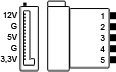
| Some of ENERMAX products support RGB lighting synchronization and some support addressable synchronization. The difference is that RGB lighting synchronization requires 12V support through motherboards and the RGB sync header on motherboards is 4 pin (pin assignment: 12VGRB). On the other hand, the addressable RGB synchronization requires 5V support through motherboards and the addressable sync header (a.k.a. ARGB header) is 3pin (pin assignent: 5V/D/G) |
RGB lighting synchronizaiton with Razer Chroma
| ENERMAX joins Razer Chroma eco system and most of ENERMAX products are compatible with Razer Chroma. In order to use Razer software, Synapse, to control the lighting effects of your system, make sure your motherboard can support Razer Chroma, more information, please visit Razer website: https://www.razer.com/chroma |
What is the main advantage of liquid cooler against the air cooler
| Liquid cooler has higher thermal absorption capacity and faster conductivity than air cooler. Therefore it is a good weapon to elimiate the CPU hot spots when over clocking. For heavy-duty system, or CPU with auto-over-clocking function, it is recommended to use liquid cooler. |
What is micro-channel cold plate
| The micro-channel structure is adding the numerous fins on the cold plate to form very narrow gap channels for coolant to pass through. This design will greatly increase the the contact area to boost the thermal exchange rate. |
What additive could be added into the coolant
| The coolant usually contains the anti-freezing and anti-corrosion additives. The additives must be carefully diluted, otherwise the cooling performance will be reduced. |
How to determine your power requirements
| ENERMAX provides a FREE online software, PSU calculator, which users can use the tool to calculates what kind of PSU wattage their system need. Click the image below or visit:http://www.enermax.outervision.com |
What is the 80 Plus certificate for power supplies
|
It's a voluntary certification program developed by Ecos Consulting and EPRI (Electric Power Research Institute) to promote more efficient energy using in PSUs (power supply units). In the beginning, it certifies PSUs with AC/DC conversion efficiency reaching 80% at 20%, 50% and 100% of rated load, and with a power factor of 0.9 or greater at 100% load. PSUs meet these standards are 80 PLUS 'standard' certified. Later, along with the technical development, it works out several higher efficiency standards such as Bronze, Silver, Gold, Platinum, and Titanium. 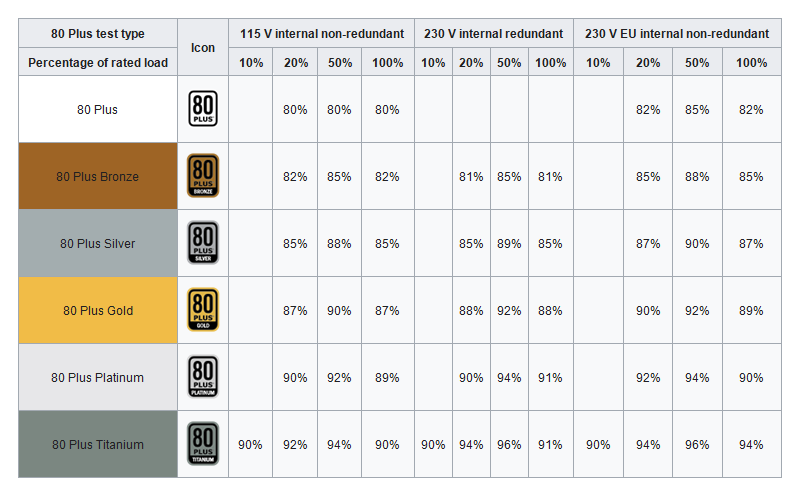
For a complete list of all ENERMAX power supplies, please visit: https://www.enermax.com/en/products/category/power-supply |
How to Choose a PC Power Supply
| a. Efficiency: buying a higher-ranking 80 PLUS certified PSU, such as 80 PLUS Platinum/Gold level or at least 80 PLUS Bronze level. A PSU with higher efficiency helps reduce the Total Operation Cost (of electricity fare), and lessen the system noise as the PSU fan doesn't run at a high speed since there isn't so much heat emitted. b. Wattage: get a PSU with at least 20%-30% extra power of system requirement is recommended, to assure system upgrade expandability and to achieve better efficiency. Furthermore, such buffer of power also ensures the PSU lifespan (by delaying the aging factor). c. Rated temperature: cheap PSUs' manufacturers definitely don't want to reveal this information. Please see the following examples. Brand A 500W PSU costs $59.99; Brand B 500W PSU costs $39.99. Most users would tend to buy Brand B PSU becuase of the better value. But let us make a clearer clarification. Brand A 500W PSU costs $59.99 and guarantees of full power @ 40C/104F; Brand B 500W PSU costs $39.99 and guarantees of full power @ 25C /77F The common PC internal temperature is around 35-38C, or even higher, therefore chossing a expensive, higher temperature rated PSU can ensure better stability and lifespan. |
What you need to know about single rail +12V power supply
| The most important advantage is it gives best compatibility; users don't have to worry how to distribute their devices to different +12V rails. The concern about safety is its shortcoming – single +12V rail usually means no OCP on +12V rail, that is, less protection. This is critical for high wattage PSU, such as >1000W level which could offer > 80A 12V power. A short-circuit could damage many system parts if powered by a single 12V rail PSU, whereas multiple 12V rail power supply could reduce the damage, or even keep the system unharmed. |
What is boundary layer in liquid cooler
| When the fluids pass through a surface, partial of the fluid will form a residiual film on the surface, known as boundary layers. This layer will obstruct the heat exchange efficiency. For liquid cooler, reducing the boundary layer in micro-channel (base plate) will help to boost the cooling performance. Enermax patented Shunt Channel Technology plays an importat role to eliminate the the boundary layer and reduces flow resistance. |
What you need to know about multiple rail +12V power supply
| The answer is just the reverse of a single 12V rail PSU. Multiple 12V rail PSU has better safety performance. Yet user needs to properly connect/distribute their devices to different +12V rails connector, and this becomes critical when they plan to use devices with higher power consumption, otherwise, the 12V rail Over Current Protection might be triggered and shut down the power. Note: you can check your home AC circuit breaker box, and it should contain several circuit breakers to ensure safety if an abnormal situation takes place and the breaker will be tripped to avoid fire incidents. If the box contains only 1-3 breakers, then just like mono +12V rail PSU, it will burn out everything when bad thing happens. |
What is ErP Lot 6 stands for
| ErP stands for EU directive of ErP (energy related products) regulation and classifies variety catogerties/lots. ErP Lot 6 requires the home appliance 'Standby and off-mode' power consumption shall be less than 0.5W at 230VAC for version 2013 (< 1W for version 2010). An ErP Lot 6-compatible PSU is necessary to ensure that the system meets the requirements. For more information: http://eur-lex.europa.eu/legal-content/EN/TXT/PDF/?uri=CELEX:32013R0617&from=EN |
To obtain technical support
Where can I find retailers selling ENERMAX products
|
If you’re looking for distributors or retailers that sell ENERMAX products, go to https://www.enermax.com/en/location You will find all the distributors and retailers that sell ENERMAX products in your area. |
How can I get sponsored
| For sponsorship inquiries, please send an email to enermax@enermax.com.tw with the following information: .Full Name .Gender .Link(s) of your website(s)/social media .Phone number .Location (City, Country) .How can you promote the ENERMAX brand? .What type of sponsorship are you looking for? .What makes you a good candidate for sponsorship? .Other things you want us to know? |
What is the radiator capacity of the StarryKnight SK30 mid-tower case
| Total two 360mm radiators installation at the top and in the front to keep system stay cool. RADIATOR SUPPORT - FRONT 360 / 280 / 240mm RADIATOR SUPPORT - TOP 360 / 280 / 240mm RADIATOR SUPPORT - REAR 120mm |
What is the fan capacity of the StarryKnight SK30 mid-tower case
| Maximum 9 fans installation provides the best air-flow in the chassis. FAN SLOTS - FRONT 3 x 140mm / 3 x 120mm (Pre-installed 3 x 140mm SquA RGB HUB ARGB) FAN SLOTS - TOP 2 x 140mm / 3 x 120mm FAN SLOTS - REAR 1 x 120mm (Pre-installed 120mm SquA RGB) FAN SLOTS - TUNNEL 2 x 120mm |
How to control the aRGB lighting effects of StarryKnight SK30 mid-tower case
|
2 ways to control addressable RGB lighting effects 1. Through Motherboard Software |
What is the radiator capacity of the Marbleshell MS30 mid-tower case
| Support 360mm radiators installation in the front and 240mm radiators on the top. RADIATOR SUPPORT - FRONT 360mm/ 280mm/ 240mm RADIATOR SUPPORT - TOP 240mm RADIATOR SUPPORT - REAR 140mm /120mm |
What is the fan capacity of the Marbleshell MS30 mid-tower case
| The interior space can install up to 6x120mm or 5x140mm fans or up to a 360mm radiator in the front. FAN SLOTS - FRONT 2 x 140mm / 3 x 120mm (3 x 120mm ARGB fans pre-installed) FAN SLOTS - TOP 2 x 140mm / 2 x 120mm FAN SLOTS - REAR 1 x 140mm / 1 x 120mm (1 x 120mm Non-LED fan pre-installed) |
How to control the aRGB lighting effects of Marbleshell MS30 mid-tower case
|
2 ways to control addressable RGB lighting effects 1. Through Motherboard Software |
What is the radiator capacity of the Marbleshell MS20 mini-tower case
| Support 280mm radiators installation in the front and 240mm radiators on the top. RADIATOR SUPPORT - FRONT 280mm / 240mm RADIATOR SUPPORT - TOP 240mm RADIATOR SUPPORT - REAR 120mm |
What is the fan capacity of the Marbleshell MS20 mini-tower case
| The interior space can install up to 6x120mm or 4x140mm fans or up to a 280mm radiator in the front. FAN SLOTS - FRONT 2 x 140mm / 3 x 120mm (2 x 120mm ARGB fan pre-installed) FAN SLOTS - TOP 2 x 140mm / 2 x 120mm FAN SLOTS - REAR 1 x 120mm (1 x 120mm Non-LED fan pre-installed) |
How to control the aRGB lighting effects of Marbleshell MS20 mini-tower case
|
2 ways to control addressable RGB lighting effects 1. Through Motherboard Software |
How to install ENERMAX LIQMAXFLO Liquid CPU Cooler
How to install ENERMAX LIQMAX III Liquid CPU Cooler
How to install ENERMAX LIQMAX III RGB Liquid CPU Cooler
How to install ENERMAX LIQMAX III ARGB Liquid CPU Cooler
How to install ENERMAX AQUAFUSION Liquid CPU Cooler
How to install ENERMAX LIQTECH TR4 II Liquid CPU Cooler
How to install ENERMAX ETS-F40-FS Series Air CPU Cooler
[AIR] ETS-N31 Series Installation Guide (AM5 & LGA1700)
Installation Guide Video For Socket AM5, LGA1700
Why is my PSU fan keeps running after I shut down my computer
| No, it is Enermax's 'HeatGuard' design - most of our PSU products have this function by keeping PSU fan running for 30-60 seconds after PSU is shut down to dissipate the remaining system heat and prolong system lifetime. |
How to install ENERMAX T50A ARGB Series Air CPU Cooler
EnermaxTunerSetup_V1.0.4.2 Update
This update addresses an issue users experienced with V1.0.2.29 where the digital display would not show the GPU temperature.
If the updated software fails to start or operate normally, please uninstall the previous version first, before reinstalling the latest version.
Supported Operating Systems:Windows 10 and Windows 11
Supported Operating Systems:
Windows 10 and Windows 11
ENERMAX Tuner Software Compatible Series
ENERMAX Tuner Software Compatible Series:
- LIQTECH XTR Series
- LIQMAX IV Series
- AQUAFUSION II ARGB Series
- ETS-T41Series
- ETS-TD60 Digital Series
**Supported Operating Systems : Windows 10 and Windows 11
【EN】ENERMAX Tuner Software User Manual
ENERMAX Tuner Software User Manual
ENERMAX Tuner Features
⚠Important Note:The following instructions describe the functions available in the software interface. The actual software interface design may vary slightly.

1. General Settings
- Language: Select your preferred language: English, Traditional Chinese, or Simplified Chinese.Please restart the software after changing the language.
- Auto-start: Enable or disable the automatic startup of ENERMAX Tuner when your computer powers on.
- Temperature Unit: Choose between Celsius and Fahrenheit.
- Display Data Rotation Time: If the water block screen displays multiple options, you can set the time interval (in seconds) for rotating between different data displays.
2. Alert Settings
- CPU Temperature Alert: Input a temperature value. When the CPU temperature exceeds this value, the water block screen will flash white.
- GPU Temperature Alert: Input a temperature value. When the GPU temperature exceeds this value, the water block screen will flash white.
- Fan Speed Alert: Input a fan speed value.When the fan speed drops below this value, the water block screen will flash white.
3. Screen Display Options
- Select the data to be displayed on the water block screen.
【DE】ENERMAX Tuner Software Bedienungsanleitung
ENERMAX Tuner Software Bedienungsanleitung
ENERMAX Tuner Merkmale
⚠Wichtiger Hinweis:Die folgende Anleitung beschreibt die in der Softwareoberfläche verfügbaren Funktionen. Die tatsächliche Gestaltung der Softwareoberfläche kann leicht abweichen.
1. Allgemeine Einstellungen
- Sprache: Wählen Sie Ihre bevorzugte Sprache: Englisch, Traditionelles Chinesisch oder Vereinfachtes Chinesisch.Bitte starten Sie die Software neu, nachdem Sie die Sprache geändert haben.
- Auto-Start: Aktivieren oder deaktivieren Sie das automatische Starten von ENERMAX Tuner beim Einschalten Ihres Computers.
- Einheit der Temperatur: Wählen Sie zwischen Celsius und Fahrenheit.
- Rotationszeit der Datenanzeige: Wenn auf dem Wasserblockbildschirm mehrere Optionen angezeigt werden, können Sie das Zeitintervall (in Sekunden) für den Wechsel zwischen den verschiedenen Datenanzeigen einstellen.
2. Alarmeinstellungen
- CPU-Temperaturalarm: Geben Sie einen Temperaturwert ein. Wenn die CPU-Temperatur diesen Wert überschreitet, blinkt der Wasserblock-Bildschirm weiß.
- GPU-Temperaturalarm: Geben Sie einen Temperaturwert ein. Wenn die GPU-Temperatur diesen Wert überschreitet, blinkt der Wasserblock-Bildschirm weiß.
- Lüftergeschwindigkeitswarnung: Geben Sie einen Wert für die Lüftergeschwindigkeit ein.
Wenn die Lüfterdrehzahl unter diesen Wert fällt, blinkt der Wasserblock-Bildschirm weiß.
3. Optionen für die Bildschirmanzeige
- Wählen Sie die Daten aus, die auf dem Wasserblock-Bildschirm angezeigt werden sollen.
【FR】Manuel d'utilisation du logiciel ENERMAX Tuner
Manuel d'utilisation du logiciel ENERMAX Tuner
Caractéristiques du logiciel ENERMAX Tuner
⚠Remarque importante:Les instructions suivantes décrivent les fonctions disponibles dans l'interface logicielle. La présentation visuelle de l'interface logicielle peut être amenée à varier légèrement.
1. Paramètres généraux
- Langue : Sélectionnez votre langue préférée : anglais, chinois traditionnel ou chinois simplifié. Veuillez redémarrer le logiciel après avoir changé de langue.
- Démarrage automatique: Activez ou désactivez le démarrage automatique d'ENERMAX Tuner lors de la mise sous tension de votre ordinateur.
- Unité de température : Choisissez entre Celsius et Fahrenheit.
- Délai de rotation des données affichées : si l'écran du waterblock affiche plusieurs options, vous pouvez définir l'intervalle de temps (en secondes) pour passer d'un affichage de données à un autre.
2. Paramètres d'alerte
- Alerte de température du processeur : Saisissez une valeur de température. Lorsque la température du processeur dépassera cette valeur, l'écran du waterblock clignotera en blanc.
- Alerte de température du GPU : Saisissez une valeur de température. Lorsque la température du GPU dépassera cette valeur, l'écran du waterblock clignotera en blanc.
- Alerte de vitesse du ventilateur : Saisissez une valeur de vitesse du ventilateur. Lorsque la vitesse du ventilateur sera inférieure à cette valeur, l'écran du waterblock clignotera en blanc.
3. Options d'affichage de l'écran
- Sélectionnez les données à afficher sur l'écran du waterblock.
【JP】ENERMAXチューナー・ソフトウェア・ユーザー・マニュアル
ENERMAXチューナー・ソフトウェア・ユーザー・マニュアル
ENERMAXチューナー機能紹介
⚠重要・注意事項:ソフトウェア・マニュアルでは、ソフトウェア・インターフェースで提供される機能について説明していますが、実際のソフトウェア・インターフェースのデザインと若干異なる場合があります。
1. 一般設定
- 言語選択:英語、繁体字中国語、簡体字中国語
言語変更後は、ソフトウェアを再起動してください。 - 自動起動: 電源オン時にENERMAX Tunerを自動起動するかどうかを設定します
- 温度表示単位:摂氏、華氏
- 表示データの切り替え時間:ウォーターブロック画面に複数の画面表示オプションがある場合、秒数を入力してデータ回転時間を設定できます。
2. アラート設定
- CPU温度アラート:温度値を入力します。CPU温度がこの値を超えると、ウォーターブロックの画面が白く点滅します。
- GPU温度アラート:温度値を入力します。GPU温度がこの値を超えると、ウォーターブロック画面が白く点滅します。
- ファン速度アラート:ファン速度の値を入力します。
ファンの回転数がこの値より下がると、ウォーターブロックの画面が白く点滅します。
3. 画面表示オプション
- ウォーターブロック画面に表示するデータを選択します。
【TW】ENERMAX Tuner 軟體使用說明
ENERMAX Tuner 軟體使用說明
ENERMAX Tuner 功能介紹
⚠重要:本軟體使用說明將介紹軟體介面中所提供的功能,與實際軟體介面設計可能略有不同。
1. 一般設定
- 選擇使用語系: 英文、繁體中文、簡體中文。 提醒!更換語系時需重新啟動軟體
- 開機時是否自動執行ENERMAX Tuner
- 溫度顯示單位: 攝氏、華氏
- 顯示數據輪播時間: 若水冷頭上的螢幕顯示選項多於一種,可透過輸入秒數,設定數據輪播的時間。
2. 警示值設定
- CPU溫度警示: 輸入溫度設定值,當CPU溫度高於設定值,水冷頭螢幕將閃爍白光
- GPU溫度警示: 輸入溫度設定值,當GPU溫度高於設定值, 水冷頭螢幕將閃爍白光
- 風扇轉速警示: 輸入風扇轉速設定值,當風扇轉速低於設定值, 水冷頭螢幕將閃爍白光
3. 螢幕顯示選項
- 選擇水冷頭螢幕顯示的數據
【CN】ENERMAX Tuner 软件使用说明
ENERMAX Tuner 软件使用说明
ENERMAX Tuner 功能介绍
⚠重要:本软件使用说明将介绍软件界面中所提供的功能,与实际软件界面设计可能略有不同。
1. 一般设置
- 选择使用语言: 英文、繁体中文、简体中文
提醒!更改语言后需要重启软件 - 开机时是否自动运行ENERMAX Tuner
- 温度显示单位: 摄氏、华氏
- 显示数据轮播时间: 若水冷头上的屏幕显示选项多于一种,可通过输入秒数,设置数据轮播的时间。
2. 报警值设置
- CPU温度报警: 输入温度设定值,当CPU温度高于设定值,水冷头屏幕将闪烁白光
- GPU温度报警: 输入温度设定值,当GPU温度高于设定值,水冷头屏幕将闪烁白光
- 风扇转速报警: 输入风扇转速设定值,当风扇转速低于设定值,水冷头屏幕将闪烁白光
3. 屏幕显示选项
- 选择水冷头屏幕显示的数据
【KR】ENERMAX Tuner 소프트웨어 사용 설명서
ENERMAX Tuner 소프트웨어 사용 설명서
ENERMAX Tuner 기능
⚠중요 참고 사항:다음 지침에서는 소프트웨어 인터페이스에서 사용할 수 있는 기능에 대해 설명합니다. 실제 소프트웨어 인터페이스 디자인은 약간 다를 수 있습니다.
1. 일반 설정
- 언어: 원하는 언어를 선택하십시오. 영어, 중국어(번체), 중국어(간체)
언어를 변경한 후 소프트웨어를 다시 시작하십시오. - 자동 시작: 컴퓨터가 켜졌을 때 ENERMAX Tuner의 자동 시작을 활성화 또는 비활성화합니다.
- 온도 단위: 섭씨 및 화씨 중에 선택합니다.
- 데이터 회전 시간 표시: 워터 블록 화면에 여러 옵션이 표시될 경우 다른 데이터가 돌아가며 표시되는 시간 간격(초)을 설정할 수 있습니다.
2. 경고 설정
- CPU 온도 경고: 온도 값을 입력합니다. CPU 온도가 이 값을 초과할 경우 워터 블록 화면이 흰색으로 깜박입니다.
- GPU 온도 경고: 온도 값을 입력합니다. GPU 온도가 이 값을 초과할 경우 워터 블록 화면이 흰색으로 깜박입니다.
- 팬 속도 경고: 팬 속도 값을 입력합니다. 팬 속도가 이 값 아래로 떨어질 경우 워터 블록 화면이 흰색으로 깜박입니다.
3. 화면 표시 옵션
- 워터 블록 화면에 표시할 데이터를 선택합니다.
【TR】ENERMAX Tuner Yazılımı Kullanıcı Kılavuzu
ENERMAX Tuner Yazılımı Kullanıcı Kılavuzu
ENERMAX Tuner Özellikleri
⚠Önemli Not:Aşağıdaki talimatlar yazılım arayüzünde kullanılabilen işlevleri açıklamaktadır. Gerçek yazılım arayüz tasarımı biraz farklılık gösterebilir.
1. Genel Ayarlar
- Dil: Tercih ettiğiniz dili seçin: İngilizce, Geleneksel Çince veya Basitleştirilmiş Çince.
Lütfen dili değiştirdikten sonra yazılımı yeniden başlatın. - Otomatik başlatma: Bilgisayarınız açıldığında ENERMAX Tuner'ın otomatik olarak başlatılmasını etkinleştirin veya devre dışı bırakın.
- Sıcaklık Birimi: Celsius ve Fahrenheit arasında seçim yapın.
- Veri Döndürme Süresini Göster: Su bloğu ekranı birden fazla seçenek gösteriyorsa, farklı veri gösterimleri arasında döndürme için zaman aralığını (saniye olarak) ayarlayabilirsiniz.
2. Alarm Ayarları
- CPU Sıcaklık Uyarısı: Bir sıcaklık değeri girin. CPU sıcaklığı bu değeri aştığında su bloğu ekranında beyaz ışık yanıp sönecektir.
- GPU Sıcaklık Uyarısı: Bir sıcaklık değeri girin. GPU sıcaklığı bu değeri aştığında su bloğu ekranında beyaz ışık yanıp sönecektir.
- Fan Hızı Uyarısı: Bir fan hızı değeri girin.
Fan hızı bu değerin altına düştüğünde su bloğu ekranı beyaz renkte yanıp sönecektir.
3. Ekran Görüntüleme Seçenekleri
- Su bloğu ekranında görüntülenecek verileri seçin.
【ID】Panduan Pengguna Perangkat Lunak ENERMAX Tuner
Panduan Pengguna Perangkat Lunak ENERMAX Tuner
Fitur ENERMAX Tuner
⚠Catatan Penting:Petunjuk berikut menjelaskan fungsi yang tersedia di antarmuka perangkat lunak. Desain antarmuka perangkat lunak yang sebenarnya mungkin sedikit berbeda.
1. Pengaturan Umum
- Bahasa: Pilih bahasa yang Anda inginkan: Inggris, Mandarin Tradisional, atau Mandarin Sederhana.Silakan membuka ulang perangkat lunak setelah mengubah bahasa.
- Mulai otomatis: Mengaktifkan atau menonaktifkan pengaktifan otomatis ENERMAX Tuner saat komputer Anda menyala.
- Sıcaklık Birimi: Celsius ve Fahrenheit arasında seçim yapın.
- Waktu Rotasi Data Tampilan: Jika layar blok air menampilkan beberapa opsi, Anda dapat mengatur interval waktu (dalam detik) untuk memutar antara tampilan data yang berbeda.
2. Pengaturan Peringatan
- Peringatan Suhu CPU: Masukkan nilai suhu. Ketika suhu CPU melebihi nilai ini, layar blok air akan berkedip putih.
- Peringatan Suhu GPU: Masukkan nilai suhu. Ketika suhu GPU melebihi nilai ini, layar blok air akan berkedip putih.
- Peringatan Kecepatan Kipas: Masukkan nilai kecepatan kipas.
Ketika kecepatan kipas turun di bawah nilai ini, layar blok air akan berkedip putih.
3. Opsi Tampilan Layar
- Pilih data yang akan ditampilkan pada layar blok air.
【IT】Manuale utente del software ENERMAX Tuner
Manuale utente del software ENERMAX Tuner
Caratteristiche di ENERMAX Tuner
⚠Nota importante:Le seguenti istruzioni descrivono le funzioni disponibili nell'interfaccia software. Il design effettivo dell'interfaccia software potrebbe variare leggermente.
1. Impostazioni generali
- Lingua: Selezionare la lingua preferita: Inglese, Cinese tradizionale o Cinese semplificato. Riavviare il software dopo aver cambiato la lingua.
- Avvio automatico: Abilitare o disabilitare l'avvio automatico di ENERMAX Tuner all'accensione del computer.
- Unità temperatura: Scegliere tra Celsius e Fahrenheit.
- Visualizzazione tempo di rotazione dati: Se la schermata del waterblock visualizza più opzioni, è possibile impostare l'intervallo di tempo(in secondi)per la rotazione tra diverse visualizzazioni di dati.
2. Impostazioni di avviso
- Avviso temperatura CPU: Immettere un valore della temperatura. Quando la temperatura della CPU supera questo valore, la schermata del waterblock lampeggia in bianco.
- Avviso temperatura GPU: Immettere un valore della temperatura. Quando la temperatura della GPU supera questo valore, la schermata del waterblock lampeggia in bianco.
- Avviso velocità ventola: Immettere un valore di velocità ventola. Quando la velocità ventola scende al di sotto di questo valore, la schermata del waterblock lampeggia in bianco.
3. Opzione di visualizzazione sullo schermo
- Selezionare i dati da visualizzare nella schermata del waterblock.
【ES】Manual de usuario del software ENERMAX Tuner
Manuale utente del software ENERMAX Tuner
Funciones de ENERMAX Tuner
⚠Nota importante:Las siguientes instrucciones describen las funciones disponibles en la interfaz del software, cuyo diseño real puede variar levemente.
1. Configuración general
- Idioma: seleccione su idioma preferido: inglés, chino tradicional o chino simplificado.
Reinicie el software después de cambiar el idioma. - Inicio automático: habilite o deshabilite el inicio automático del ENERMAX Tuner cuando su PC se haya iniciado.
- Unidad de temperatura: elija entre Celsius y Fahrenheit.
- Tiempo de rotación de datos de visualización: si la pantalla del bloque de agua muestra varias opciones, puede establecer el intervalo de tiempo (en segundos) para rotar entre diferentes visualizaciones de datos.
2. Configuración de la alerta
- Alerta de temperatura de CPU: escriba un valor de temperatura. Cuando la temperatura de la CPU supere este valor, la pantalla del bloque de agua parpadeará en blanco.
- Alerta de temperatura de GPU: escriba un valor de temperatura. Cuando la temperatura de la GPU supere este valor, la pantalla del bloque de agua parpadeará en blanco.
- Alerta de velocidad del ventilador: escriba un valor de velocidad del ventilador. Cuando la velocidad del ventilador caiga por debajo de este valor, la pantalla del bloque de agua parpadeará en blanco.
3. Opciones de visualización de la pantalla
- Seleccione los datos que se mostrarán en la pantalla del bloque de agua.
【PL】Instrukcja obsługi oprogramowania ENERMAX Tuner
Instrukcja obsługi oprogramowania ENERMAX Tuner
Funkcje ENERMAX Tuner
⚠Ważna uwaga:Poniższe instrukcje opisują funkcje dostępne w interfejsie oprogramowania. Rzeczywisty wygląd interfejsu oprogramowania może się nieznacznie różnić.
1. Ustawienia ogólne
- Język: Wybierz preferowany język: Angielski, Tradycyjny Chiński lub Uproszczony Chiński.
Po zmianie języka uruchom ponownie oprogramowanie.. - Autostart: Włączenie lub wyłączenie automatycznego uruchamiania ENERMAX Tuner po włączeniu komputera.
- Jednostka temperatury: Wybór pomiędzy stopniami Celsjusza i Fahrenheita.
- Wyświetlanie czasu rotacji danych: Jeśli na ekranie bloku wodnego wyświetlanych jest wiele opcji, można ustawić odstęp czasu (w sekundach) przełączania pomiędzy różnymi wyświetlaczami danych.
2. Ustawienia alarmu
- Alarm temperatury CPU: Wprowadzanie wartości temperatury. Gdy temperatura CPU przekroczy tę wartość, ekran bloku wodnego zacznie migać białym światłem.
- Alarm temperatury GPU: Wprowadzanie wartości temperatury. Gdy temperatura GPU przekroczy tę wartość, ekran bloku wodnego zacznie migać białym światłem.
- Alarm prędkości wentylatora: Wprowadzanie wartość prędkości wentylatora. Gdy prędkość wentylatora spadnie poniżej tej wartości, ekran bloku wodnego zacznie migać białym światłem.
3. Opcje wyświetlania ekranu
- Wybór danych, które mają być wyświetlane na ekranie bloku wodnego.
【RU】Руководство по эксплуатации программного обеспечения ENERMAX Tuner
Руководство по эксплуатации программного обеспечения ENERMAX Tuner
Возможности ENERMAX Tuner
⚠Важное замечание:В следующих инструкциях описаны функции, доступные в интерфейсе программного обеспечения. Фактический дизайн программного интерфейса может незначительно отличаться.
1. Oбщие настройки
- Язык: Выберите предпочтительный язык: английский, традиционный китайский или упрощенный китайский.
Пожалуйста, перезапустите программное обеспечение после смены языка. - Автозапуск: включите или отключите автоматический запуск ENERMAX Tuner при включении компьютера.
- Единицы измерения температуры: выбор между градусами Цельсия и Фаренгейта.
- Время поворота дисплея данных: Если на экране водоблока отображается несколько вариантов, можно задать интервал времени (в секундах) для переключения между различными отображениями данных.
2. Настройки сигнализации
- Сигнал тревоги по температуре процессора: введите значение температуры. Если температура процессора превышает это значение, экран водоблока мигает белым цветом.
- Сигнал тревоги температуры GPU: введите значение температуры. Если температура GPU превышает это значение, экран водоблока мигает белым цветом.
- «Предупреждение о скорости вращения вентилятора": введите значение скорости вращения вентилятора.
3. Параметры отображения экрана
- Выберите данные, которые будут отображаться на экране водоблока.
【TH】คู่มือผู้ใช้ซอฟต์แวร์ ENERMAX Tuner
คู่มือผู้ใช้ซอฟต์แวร์ ENERMAX Tuner
คุณสมบัติของ ENERMAX Tuner
⚠หมายเหตุสำคัญ:คำแนะนำต่อไปนี้จะอธิบายฟังก์ชันต่างๆ ที่ใช้ได้ในอินเทอร์เฟซซอฟต์แวร์ การออกแบบอินเทอร์เฟซซอฟต์แวร์จริงอาจแตกต่างกันเล็กน้อย
1. การตั้งค่าทั่วไป
- ภาษา: เลือกภาษาที่คุณต้องการ: อังกฤษ จีนดั้งเดิม หรือจีนประยุกต์
โปรดรีสตาร์ทซอฟต์แวร์หลังจากเปลี่ยนภาษา - การเริ่มระบบอัตโนมัติ: เปิดใช้งานหรือปิดใช้งานการเริ่มต้นระบบอัตโนมัติของ ENERMAX Tuner เมื่อคอมพิวเตอร์ของคุณเปิดเครื่อง
- หน่วยอุณหภูมิ: เลือกระหว่างเซลเซียสและฟาเรนไฮต์
- เวลาการหมุนข้อมูลการแสดงผล: หากหน้าจอบล็อกน้ำแสดงตัวเลือกหลายรายการ คุณสามารถตั้งค่าช่วงเวลา (เป็นวินาที) สำหรับการหมุนระหว่างการแสดงข้อมูลที่แตกต่างกัน.
2. การตั้งค่าการแจ้งเตือน
- การแจ้งเตือนอุณหภูมิ CPU: ป้อนค่าอุณหภูมิ เมื่ออุณหภูมิ CPU เกินค่านี้ หน้าจอบล็อกน้ำจะกะพริบเป็นสีขาว
- การแจ้งเตือนอุณหภูมิ GPU: ป้อนค่าอุณหภูมิ เมื่ออุณหภูมิ GPU เกินค่านี้ หน้าจอบล็อกน้ำจะกะพริบเป็นสีขาว
- การแจ้งเตือนความเร็วพัดลม: ป้อนค่าความเร็วพัดลม
เมื่อความเร็วพัดลมลดลงต่ำกว่าค่านี้ หน้าจอบล็อกน้ำจะกะพริบเป็นสีขาว”
3. ตัวเลือกการแสดงผลบนหน้าจอ
- เลือกข้อมูลที่จะแสดงบนหน้าจอบล็อกน้ำ